
Adding a text block
Adding a text block
This is how you add a text block in Caracal:
- Click the edit link in the Caracal Support Science email (https://caracal.uu.nl/xxxxx/Edit) and log in with your SolisID.
- Click the ‘Edit the survey’ link.
The edit screen opens in a new browser tab.
- Click the text icon in the grey bar at the top.
A pop-up appears: ‘Create a new question and add it to the list’.
- Type or paste the text into the text fields: Dutch and English, then click ‘Save’. Both fields must contain text. So if you only communicate in English, paste the English text into both fields.
- Click the text block that has appeared below the questions, drag it to the desired location and drop it.
The text block has been added and moved. This change is saved automatically. There is therefore no ‘Save’ button.
- In the 1st browser tab, click ‘See what the survey will look like’ to check that your change has been applied as intended.
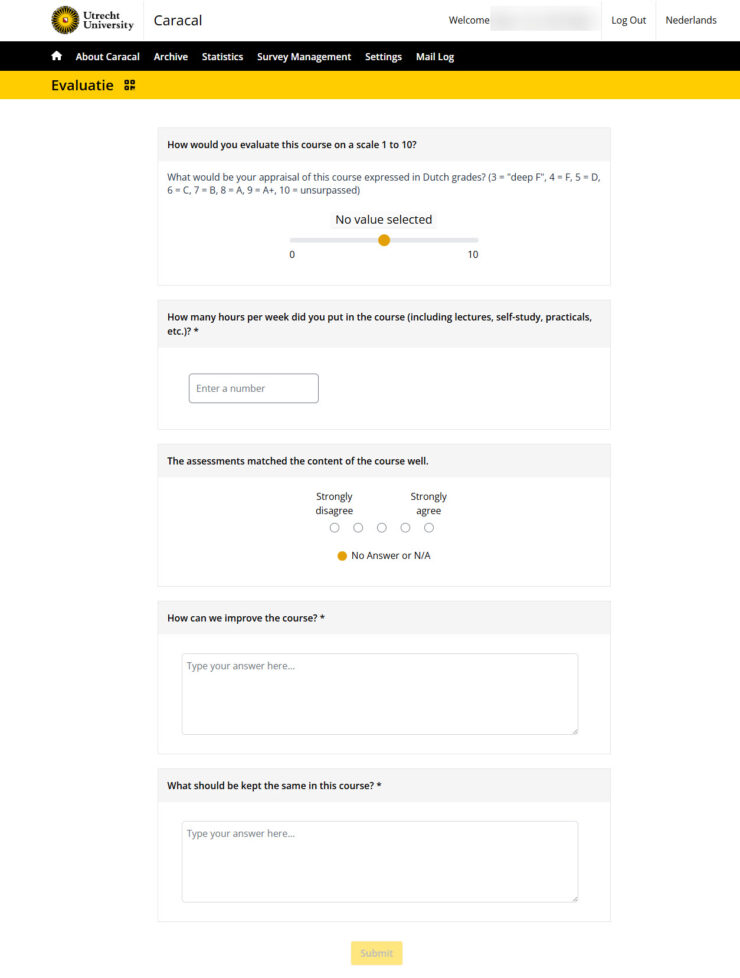
The evaluation form is presented to students in Caracal’s new design.
In your edit screen, the preview looks like this: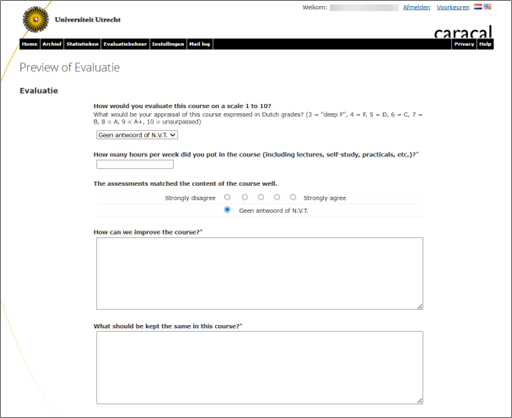
This is what students see: